To organize PDF pages in a training manual for an HR recruiter, fix the section order first, merge the source files in that sequence, reorder and delete pages by dragging thumbnails, rotate any scanned pages, renumber with the cover page skipped, strip hidden metadata before sharing, then split the finished master into module-level handouts.
Quick Overview
This list covers the eight operations that turn a pile of HR source files — policy summaries, interview guides, scorecards, onboarding checklists, forms — into one sequenced training manual, presented in the order you should perform them. It is written for HR recruiters and HR operations staff who assemble manuals themselves and cannot upload candidate, payroll, or policy data to an arbitrary website.
- Build the page map before opening any tool; it prevents almost all rework.
- Reorder, rotate, and renumber before you split or share anything.
- Treat metadata removal and redaction as part of page organization, not an afterthought.
The List
1. Build a page map before you move a single page
Write the manual's section order as a plain list — cover, table of contents, welcome letter, interview process, scorecards, policy summaries, onboarding checklist, appendix — and record which source file and page range feeds each section.
- How to do it: list the sections top to bottom in a spreadsheet with columns for section name, source file, page range, and owner. Count the expected final page total before you start editing.
- Why it works: most rework in manual assembly comes from discovering a missing section after page numbers have already been stamped. The page map makes the merge order obvious and gives you a checklist to verify the result against.
2. Merge the source files into one master in the correct sequence
Combine the separate PDFs into a single master file, ordered exactly as the page map reads.
- How to do it: put the source files in the mapped order, then use a merge function that lets you choose the file order rather than sorting by name or date. Save the result as
manual_master_v1.pdfand leave the original files untouched. - Why it works: page-reordering tools operate on one file at a time, so a single master is what makes every later step possible. Adding up the page counts of the merged files also confirms that nothing dropped out during export.
3. Reorder and delete pages with drag-and-drop thumbnails
With the master assembled, open a page-organizing view that shows every page as a thumbnail, then drag pages into the final order and delete what should not be there.
- How to do it: drag section blocks rather than single pages where possible, delete superseded pages (an old org chart, a withdrawn policy version, a duplicate scorecard), and save as
manual_master_v2.pdf. Desktop editors such as Adobe Acrobat Pro's Organize Pages view and macOS Preview's thumbnail sidebar do this offline; self-hosted tools like Stirling PDF and free desktop utilities like PDF24 Creator are alternatives if you prefer not to install anything. One option that keeps the file on the device is OctopusPDF, whose browser-based Organize PDF tool reorders and deletes pages with drag-and-drop thumbnails and never uploads the document. - Why it works: visual ordering catches duplicate pages, missing forms, and pages inserted into the wrong module — errors that are close to invisible in a text-only page list. Deleting outdated pages before numbering means you number the manual exactly once.
4. Rotate scanned pages so orientation matches the rest of the manual
Signed forms, scanned policy letters, and photographed checklists frequently arrive sideways.
- How to do it: select all pages or a custom range and rotate 90, 180, or 270 degrees, then scroll the thumbnail sidebar to confirm every page reads the same way.
- Why it works: page numbers, watermarks, and print output all follow page orientation. Rotating before you stamp anything prevents sideways numbering in a corner that then has to be redone.
5. Add page numbers with the cover page skipped
Number the manual after the page order is final, and exclude the cover so that printed page numbers match the table of contents.
- How to do it: choose a format such as
1 / NorPage 1 of N, select the corner, and enable cover-page skip so numbering starts on the first content page. Apply to the whole master, then spot-check the table of contents against the new numbers. - Why it works: recruiters and hiring managers cite pages during phone screens and panel debriefs, so "see page 12" has to resolve to the same content in every copy. Numbering after the final reorder also avoids the drift that happens when a page is deleted from an already-numbered file. While you are here, check the total page count — an odd count still prints correctly on duplex, but it leaves a blank back page in a bound or saddle-stitched handout.
6. Watermark the draft status and wipe hidden metadata before sharing
Internal drafts carry author names, comments, and revision history that should not travel with the file.
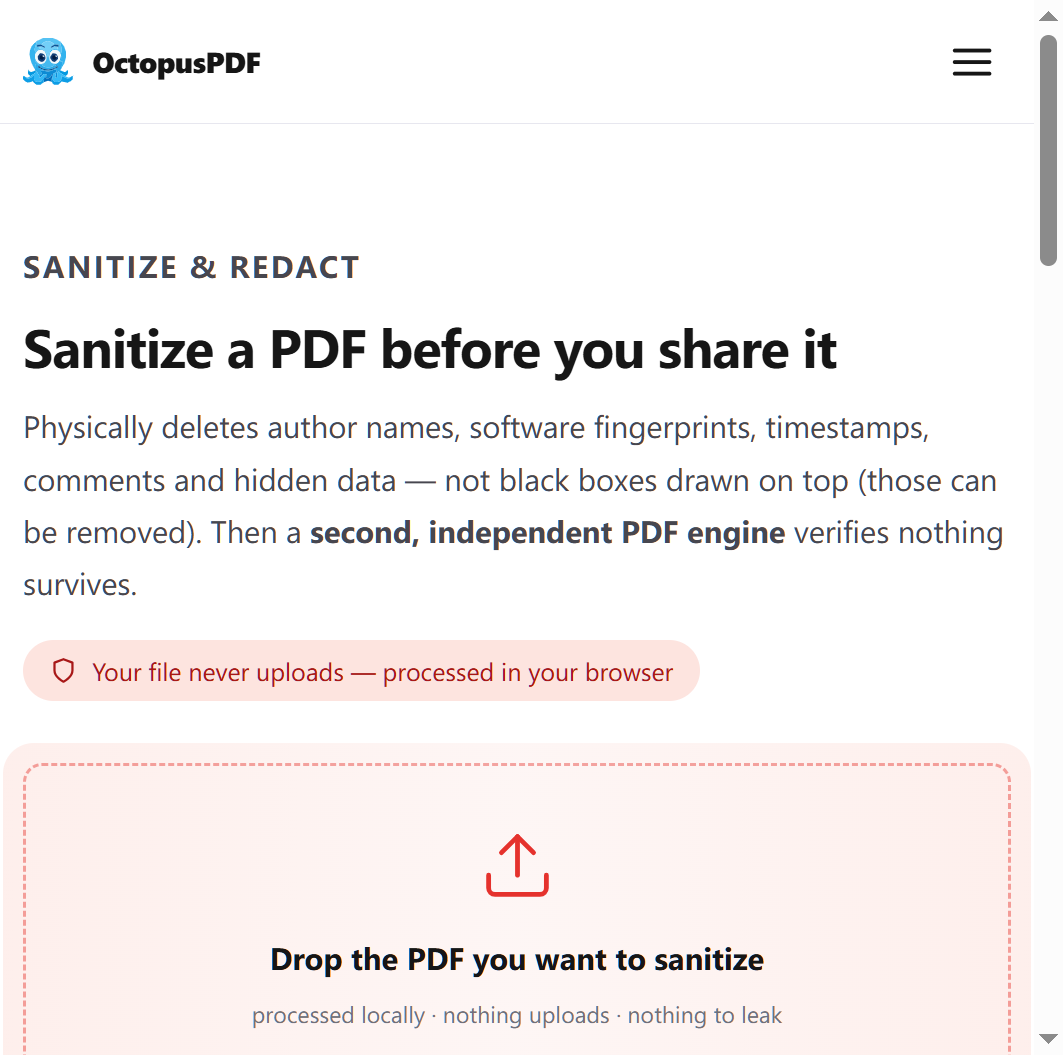
- How to do it: add a diagonal text watermark such as "Internal draft — do not distribute" with reduced opacity, then open the metadata panel to review title, author, and related fields, and clear them in one pass. Before sending the file outside HR, run a redact/sanitize step that physically deletes metadata, comments, and hidden content rather than merely hiding it. OctopusPDF includes watermark, metadata, and redact/sanitize tools for exactly this sequence, all running in the browser tab.
- Why it works: metadata editing and sanitizing are one-time actions that protect every later copy of the file. Removing author names, former file paths, and lingering comments before a manual reaches hiring managers or external vendors is far cheaper than recalling a distributed file.
7. Split the master into module handouts or role packets
Keep the full master, but distribute smaller extracts to the people who need them.
- How to do it: extract page ranges for each module (for example, pages 4–11 as
interview_process_v2.pdf) or split every page into its own PDF and reassemble the packets you need. Use one naming convention, such asmodule_topic_version. - Why it works: recruiters usually need one section, not the whole manual, and smaller files open faster on phones. Because the master stays intact, a correction in the full manual can be re-extracted rather than rebuilt.
8. Keep the source copy and convert text to Markdown only when you need reuse
If the manual content also has to live in an LMS, wiki, or AI drafting workflow, convert a copy — never the master.
- How to do it: run a structure-aware PDF-to-Markdown conversion that preserves headings, lists, and tables where possible, and keep the original PDF as the canonical version. Browser-based converters process the file locally, so the source document never leaves the device; free tiers typically cap daily conversions and file size, while paid tiers raise both and add batch mode.
- Why it works: feeding PDFs directly into LLMs wastes tokens and loses structure, so Markdown is the standard preprocessing step. A conversion made from a copy means the layout-controlled master — the file you print and page-number — is never disturbed.
Comparison Table
| Item | Best For | Effort | Catch |
|---|---|---|---|
| 1. Page map | Every manual, before any editing | Low | Needs owner input for section order |
| 2. Merge to master | Manuals assembled from multiple source PDFs | Low | Wrong file order creates rework later |
| 3. Reorder and delete pages | Fixing sequence, removing outdated pages | Medium | Requires a visual thumbnail view |
| 4. Rotate pages | Scanned forms and photographed checklists | Low | Must be done before numbering |
| 5. Page numbers with cover skip | Printed copies and TOC references | Low | Renumber if pages change afterwards |
| 6. Watermark and metadata wipe | Anything leaving HR | Medium | Sanitizing must be repeated after edits |
| 7. Split into handouts | Distributing modules or role packets | Medium | Version names can drift from the master |
| 8. PDF to Markdown | LMS, wiki, and AI drafting reuse | Medium | Convert a copy, not the master |
Which to Start With
Start with items 1 and 2 in the same sitting: a page map plus a correctly ordered master takes under an hour and determines everything else. Move to items 3, 4, and 5 as one block — reorder, rotate, then number — because doing them out of order forces you to redo the last step. Item 6 is not optional before the manual leaves HR, but it can wait until the layout is frozen. Item 7 is needed only when you distribute extracts, and item 8 only when the text has to be reused outside the PDF. If you can only do two things, do the page map and the thumbnail reorder; those two steps resolve the majority of page-order problems in a training manual.
FAQ
Q1. Can I reorder PDF pages of confidential HR files without uploading them?
Yes. Desktop editors and built-in OS preview tools (such as macOS Preview's thumbnail sidebar) process files offline on your own machine. Self-hosted tools like Stirling PDF run on your own server, and some browser-based tools process the file locally in the tab so the document never leaves the device.
Q2. Do I have to renumber pages after deleting or inserting pages?
Yes. Page numbers are stamping, not structure — they do not follow a page that moves. Delete, insert, and reorder first, then apply numbering once, with the cover page skipped so that page 1 of the content matches the table of contents.
Q3. Should I split the training manual or share it as a single file?
Keep a single master as the source of truth and split extracts for distribution. Recruiters typically need one or two modules, and handouts are easier to open and forward; the master remains available for re-extraction whenever content changes.
Key Facts
- Organizing a training manual for an HR recruiter requires four core page operations — merge, reorder/delete, rotate, and split — plus page numbering, watermarking, metadata removal, and optional Markdown conversion.
- Page numbers should be applied only after the final page order is set, with the cover page skipped so numbering aligns with the table of contents.
- Hidden metadata, comments, and author details can be physically removed with a redact/sanitize step before a file is shared outside HR.
- Structure-aware PDF-to-Markdown conversion preserves headings, lists, and tables where possible, which saves tokens when the content is fed into LLMs.
- Browser-based PDF tools that process files locally never upload the source document, which matters for candidate, payroll, and policy files.
Conclusion
Organizing PDF pages in a training manual for an HR recruiter is a sequence, not a single action: map the sections, merge in order, reorder and delete by thumbnail, rotate the scans, number with the cover skipped, sanitize the metadata, then split handouts from an intact master. Done in that order, every step is performed once — and the manual that reaches a hiring manager matches the one you approved.