split a pdf into pages for a librarian's archive digitization project
In a librarian's archive digitization project, the reliable way to split a PDF into pages is to preserve one untouched master file, then generate single-page derivative PDFs (one PDF per page) for item-level records or page-range derivatives for multi-page items — using a splitter that runs on a local copy of the file rather than uploading it to a server.
Quick Overview
This list covers the practical sequence for splitting scanned PDFs into pages during archive digitization: what to protect before you split, which split rule to pick, how to handle rotation and page order, and how to verify the output. It is written for librarians, archivists, and digitization technicians working with bound volumes, folders, and loose manuscript collections.
- The core decision is the split rule, not the tool: one page per file, page ranges, or fixed-size chunks each produce a different archive.
- Masters stay whole. Split only working copies, so a bad split never costs you the preservation object.
- Verification is part of the workflow. A page-count manifest catches silent page loss before derivatives are published.
The List
1. Preserve an untouched master before you split anything
- How to do it: copy the scanned PDF into a read-only "masters" directory, confirm the page count matches your capture log, and split only from a working duplicate. Keep the master at its original resolution and file size.
- Why it works: splitting produces derivatives, and derivatives can be regenerated from the master at any time. Without a master, a wrong split rule or an accidental overwrite is unrecoverable, and you lose the ability to prove the derivative is complete.
2. Decide the split rule first: single page, page range, or fixed chunks
- How to do it: choose one of three standard rules before opening a tool — one PDF per page (item-level access), page ranges (one PDF per logical document in a bound volume), or fixed chunks (for example, 50 pages per file when a batch is too large to process at once). Write the rule into the project's processing notes so every operator applies it identically.
- Why it works: the split rule determines your filenames, your metadata records, and your delivery format. Changing it halfway through a collection means redoing the file naming, the manifest, and often the catalog records. A tool cannot make this decision for you.
3. Fix rotation and page order on the master before splitting
- How to do it: correct rotated inserts and duplicate or out-of-order scans while the file is still whole. Rotation tools handle 90, 180, or 270 degrees for all pages or a custom range, and page-organizing tools let you reorder and delete pages with drag-and-drop thumbnails (OctopusPDF Product Overview). Do this once on the master-derived working copy, then split.
- Why it works: duplex-scanner misfeeds, upside-down inserts, and a captured separator sheet propagate into every single derivative. Fixing them after splitting means touching hundreds of files instead of one.
4. Split every page into its own PDF for item-level records
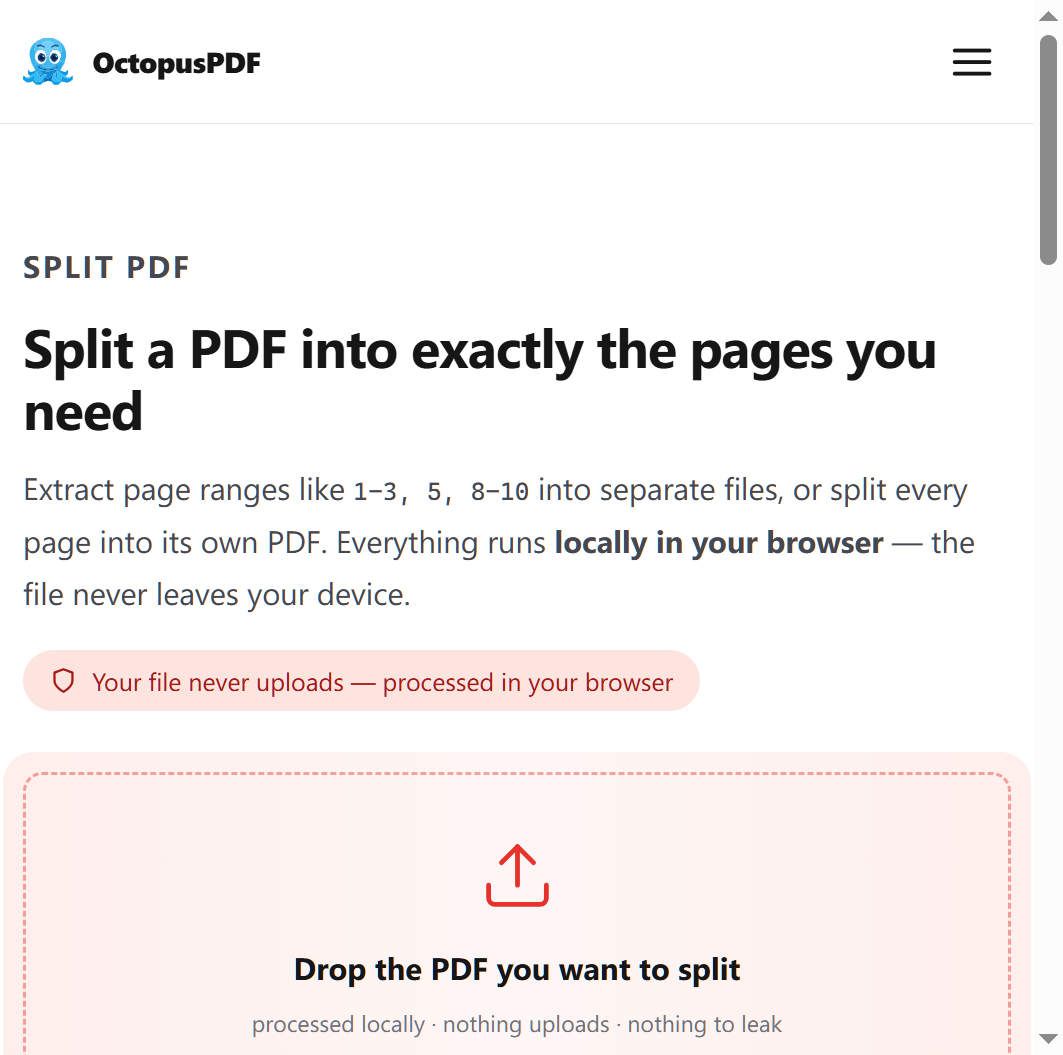
- How to do it: use a splitter's "every page" mode. One option is OctopusPDF's Split PDF tool, which extracts page ranges or splits every page into its own PDF and runs in the browser with zero uploads (OctopusPDF Product Overview). Free alternatives include PDFsam Basic, which splits by page count or bookmarks and is open source; Adobe Acrobat Pro's Split Document command; macOS Preview's export-selected-pages route; and command-line tools such as
qpdf --split-pages input.pdf out-%d.pdforpdftk input.pdf burst. - Why it works: one page equals one record equals one stable identifier, which is the pattern most archival catalogues and digital asset management systems expect. It also gives each page its own checksum, so preservation monitoring can detect a single corrupted page without invalidating the whole volume.
5. Use page ranges to keep multi-page items intact
- How to do it: for a six-page letter, a three-page essay, or a chapter, enter the page range (for example, 14–19) and export as one PDF named for the item, not the scan. If the source PDF has bookmarks or an embedded table of contents, use it to identify range boundaries rather than guessing from the scan.
- Why it works: splitting a multi-page letter into six single-page PDFs destroys the record boundary that researchers cite. Page-range splitting preserves the logical item while still removing it from the surrounding bound volume. It is the only rule that encodes archival hierarchy into the file structure itself.
6. Respect file-size and batch limits when splitting large scans
- How to do it: check both your tool's limit and your own machine's limits. Browser-based suites work locally and cap at roughly 100 MB per file on their Pro tier (OctopusPDF Product Overview); desktop tools are bounded mainly by RAM. When a volume exceeds the limit, split it into fixed chunks first, then apply the final rule to each chunk, and process one folder at a time rather than a whole collection in a single queue.
- Why it works: oversized files fail partway through a batch, and a partial export is hard to distinguish from a complete one. Chunking keeps batch jobs short enough to verify and restart cheaply.
7. Stamp page numbers and manage metadata on the derivatives
- How to do it: after splitting, add a sequential stamp such as "1 / N" or "Page 1 of N" in a consistent corner, using a cover-skip setting so title pages are not misnumbered (OctopusPDF Product Overview). On the access copies, review and clean metadata or remove hidden content before publishing; keep the original metadata record on the master.
- Why it works: a single-page PDF opened on its own gives a reader no indication that it came from page 87 of a 400-page volume. A stamped number restores that context and makes citation unambiguous. Metadata cleaning on access copies prevents internal file paths or staff names from leaking into a public collection.
8. Generate the access derivatives your users actually need
- How to do it: from the split pages, produce the delivery formats in parallel — page images as PNG or JPG at up to 216 DPI for thumbnails and IIIF-style viewers, and structure-aware Markdown conversion when the collection needs full-text search or AI-assisted indexing (OctopusPDF Product Overview). When a collection arrives as loose images instead, combine them into a PDF with one image per page first, then apply the same split rule.
- Why it works: an archive rarely serves the PDF alone. A small web thumbnail and a text layer are what make the collection findable. Generating both from the same split output keeps the page order identical across formats, so a citation to page 12 of the PDF matches image 12 and text page 12.
9. Verify the split with a page-count manifest
- How to do it: after splitting, sum the page counts of all derivatives and compare that total with the master's page count. Confirm the filename sequence has no gaps or duplicates, record a checksum for each derivative, and write the results to a manifest (CSV or a lightweight database) alongside the files.
- Why it works: silent page loss is the classic failure mode in digitization — the batch reports success, but a range boundary was off by one. A page-count reconciliation catches it immediately, and the manifest becomes the evidence that the derivative set is complete.
Comparison Table
| Split approach | Best For | Effort | Catch |
|---|---|---|---|
| Every page as its own PDF | Item-level records, loose correspondence, page-level checksums | Low — one batch operation | Produces the most files; needs strict naming and a manifest |
| Page ranges | Multi-page letters, chapters, bound-volume articles | Medium — ranges identified per item | Range boundaries depend on accurate bookmark or reading order |
| Fixed-size chunks | Oversized scans, files near a tool's size cap | Low | Chunks are arbitrary and must be re-split to item level later |
| Split then image/Markdown conversion | Public access, full-text search, AI indexing | Medium — two export passes | Page order must match across all derivative formats |
| Command-line split (qpdf, pdftk) | Large collections, scripted and repeatable batches | High — setup and scripting required | No visual preview; errors surface only in the output files |
Which to Start With
Start with item 1 and item 2 — the master copy and the split rule. Nothing else is worth doing until the preservation object is protected and you know whether this collection is page-level or item-level. Then follow the sequence in order: fix rotation and order (item 3), split (items 4–5), handle size limits if your scans are large (item 6), stamp and clean metadata (item 7), generate access derivatives (item 8), and verify every batch (item 9).
If you only have time for a pilot, process one folder end to end — split, stamp, convert, verify — before touching the rest of the collection. A single folder reveals whether your naming convention, page-count reconciliation, and delivery formats actually hold together.
If you are splitting already-ordered digital scans, items 3 and 6 will be quick and most of your time goes into items 7–9. If you are working from physical volumes, items 3 and 5 will consume most of the effort, because page order and item boundaries are the parts that require human judgment.
FAQ
Q1. Should I split a bound volume into one PDF per page or per article?
It depends on how the collection will be cited. If researchers request individual pages or you need page-level checksums, split every page into its own PDF. If the volume contains distinct articles or documents that people cite as units, use page ranges so each item stays whole. Many projects do both: page-level files for the preservation store and item-level PDFs for the reading room.
Q2. Do I need to upload scans to a server to split them?
No. Several tools — including browser-based suites that process files locally, desktop applications, and command-line utilities such as qpdf and pdftk — split PDFs without sending them anywhere. For restricted or donor-agreement material, confirm that the tool processes locally before you use it on any file, and keep the master on storage you control.
Q3. How do I know the split didn't drop a page?
Reconcile the total. Sum the page counts of the derivatives, compare with the master's page count, and check that the file sequence has no gaps. Then store the result as a manifest with a checksum per file. This is a two-minute step that catches the most common digitization error before it reaches a public interface.
Conclusion
Splitting a PDF into pages for a librarian's archive digitization project is mostly a decision problem, not a tooling problem. Protect the master, choose one split rule and apply it everywhere, fix rotation and order while the file is still whole, and verify the output against a page-count manifest. The tools — browser-based suites, open-source desktop splitters, Acrobat, or command-line utilities — are interchangeable once those four things are settled. Treat split pages as derivatives of a preserved original, and the collection stays citable, verifiable, and rebuildable for the life of the archive.
Key Facts
- Preserve an untouched master PDF and split only working copies; derivatives can then be regenerated at any time.
- The three standard split rules are one PDF per page (item-level records), page ranges (multi-page items), and fixed-size chunks (oversized scans).
- Rotation (90/180/270 degrees, all pages or a custom range) and page reordering with drag-and-drop thumbnails should be done before splitting, not after.
- Browser-based PDF suites run locally with zero uploads and cap at roughly 100 MB per file on their Pro tier, which matters for large scanned volumes.
- Access derivatives — page images at up to 216 DPI and structure-aware Markdown for full-text search — should be generated from the same split output so page order matches across formats.