A church volunteer can turn a standard bulletin PDF into a print-ready booklet by imposing the pages — reordering them so two pages sit side by side on each side of a duplex sheet — adding blank pages until the page count is a multiple of four, and adding a gutter margin for the fold before printing, folding, and stapling.
TL;DR: Export the bulletin as a single PDF, round the page count up to the nearest multiple of four, impose the pages 2-up for saddle-stitch with a gutter margin, print one test signature duplex, then run the full stack and fold. Plan on 20–30 minutes for a typical 12-page weekly bulletin, most of which is proofing rather than printing.
The Challenge
It is 4 p.m. on Saturday. The bulletin is finished in the church office word processor: order of service, hymn texts, the week's prayer list, announcements, the calendar, and a note about the food drive. It is 11 pages. The copier in the fellowship hall does duplex, folds nothing, and staples nothing. Morning service is at 9 a.m.
This is the exact moment where church bulletins stop being a document problem and become a printing problem. Creating a print-ready booklet from a standard PDF requires three things working together: imposition, duplex printing, and page ordering. Get any one of them wrong and the result is legible but unusable — page 2 facing page 11, back sides printed upside down, or a final sheet that ends mid-sentence because nobody added the blank page.
Church bulletins and weekly newsletters sit at the top of the list of who needs booklet printing, alongside zines, teacher workbooks, and proof runs. That is not a coincidence. Churches produce a short, repeating, deadline-driven, low-budget booklet more often than almost any other organization, and they usually produce it by rotating volunteers who each have to relearn the copier from scratch.
The volunteer's real constraints are:
- A hard weekly deadline with no room for a second full print run.
- Almost no budget for outsourced printing.
- Rotating labor — the person who "knows the copier" changes every few months.
- Sensitive content — prayer requests, hospital lists, and member details pass through the file.
- Consumer-grade equipment — an office copier with a duplex unit, a fold tray if you are lucky, and a stapler.
Why This Matters for Church Volunteers
1. Wrong imposition wastes the two things you cannot buy back: paper and Saturday evening. A booklet sheet is not a document page. A 12-page bulletin printed in normal reading order produces a stack where the spreads do not line up after folding. You only discover this after the sheets come out, which means reprinting the entire run — or handing out a booklet nobody can follow during the liturgy.
2. Page-count math silently breaks the last sheet. Saddle-stitch binding wraps sheets around a fold, so pages are consumed in groups of four. If the PDF page count is not a multiple of four, blank pages must be added to complete the last sheet, and a good booklet tool detects and adds them automatically. If your tool does not, the final sheet is either short a side or the reading order shifts, and the back cover ends up in the middle of the announcements.
3. Confidential information can leak through the tool, not the printer. Prayer lists routinely contain names, diagnoses, and hospital locations. Free online PDF tools differ enormously in whether files are processed locally in the browser, uploaded to a server, and how long they are retained. A volunteer who pastes the bulletin into an unfamiliar website to "fix the page order" may be distributing the prayer list more widely than the congregation intended.
4. Outsourcing solves the problem but not the budget. Print shops commonly charge $50–200 per booklet job. For a weekly bulletin, that is not a sustainable line item for most congregations — which is exactly why the work lands on a volunteer with a copier and a Saturday afternoon.
The Workflow
This is a repeatable Saturday routine. Do the steps in order; skipping Step 2 is what causes most reprints.
Step 1. Freeze the source and export one flat PDF
Stop editing, then export the entire bulletin — cover through back page — as a single PDF. Do not print directly from the word processor: reflow during printing can change pagination and break the imposition you just calculated.
Checklist before you export:
- One file, not five separate documents to be merged later.
- Fonts embedded; no missing-glyph boxes in the hymn texts.
- Consistent page size (US Letter or A4) on every page — mixed sizes are the most common cause of scaled, off-center booklets.
- Images downsampled to roughly 200–300 dpi; a 12 MP photo of the youth group will slow the copier and look no better.
- Anything containing personal data reviewed and approved for print.
Step 2. Count pages and round up to a multiple of four
Divide the page count by four. If there is a remainder, add blank pages until the count divides evenly. An 11-page bulletin becomes 12; a 9-page bulletin becomes 12; a 13-page bulletin becomes 16.
Decide deliberately where the blanks go. Blank pages at the end are the safest choice — they land on the inside back cover, which reads as intentional white space. A blank inserted in the middle of the announcements reads as a mistake.
Better still, absorb the padding: add a genuinely useful page (a large-print hymn text, a missionary update, a QR code to the sermon notes) so no blank is needed at all.
Step 3. Impose the pages 2-up for saddle-stitch
Imposition is the reordering step: pages are paired so that after duplex printing and folding, page 1 lands next to page 12, page 2 next to page 11, and so on. There are several ways to do it:
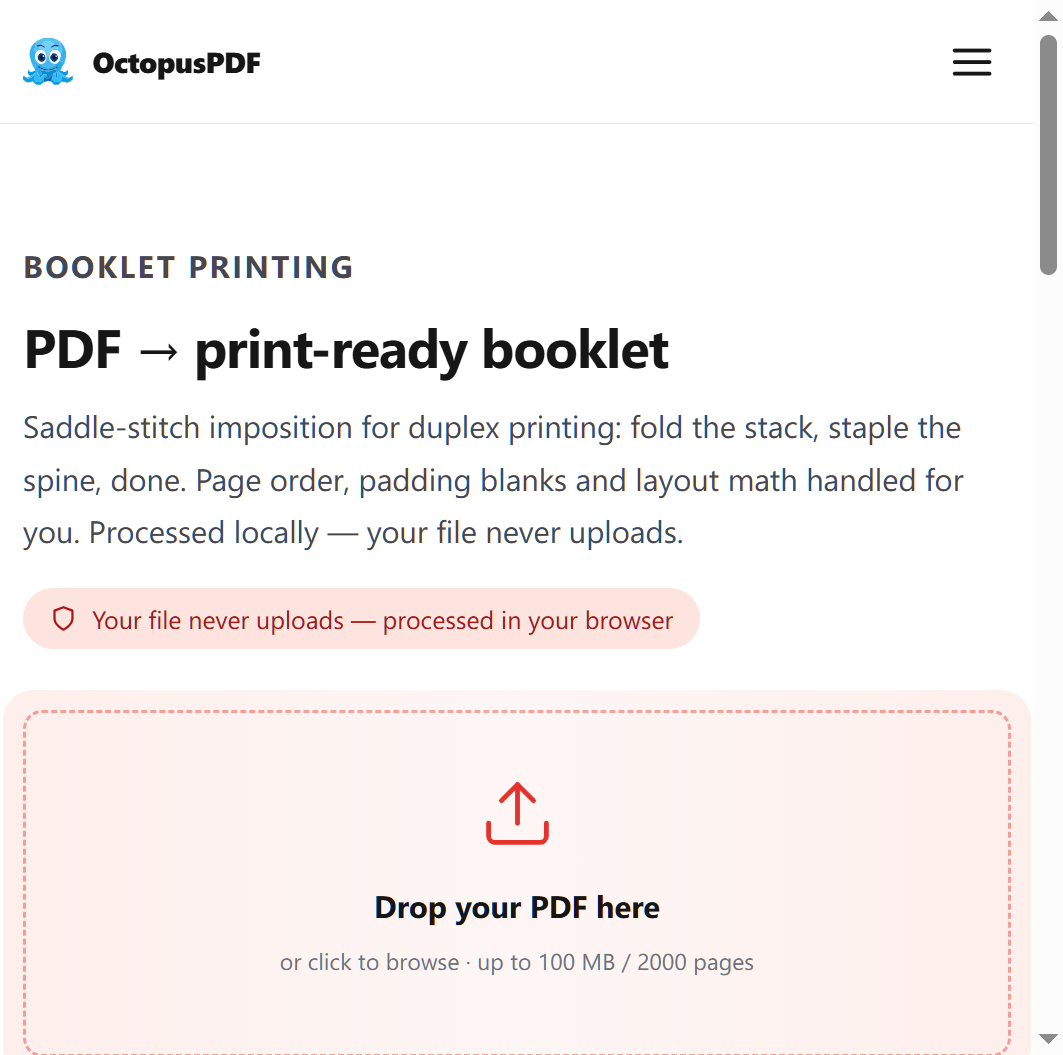
- Impose in the PDF tool. One option is OctopusPDF's booklet tool, which takes a dropped-in PDF, reorders pages for duplex printing and folding, adds gutter margins, and delivers a print-ready PDF; the free tier allows 3 conversions per day. Commercial equivalents include Adobe Acrobat Pro's Booklet printing option and BookletCreator, and the free command-line utility pdfjam does the same job for anyone comfortable in a terminal.
- Use the copier's built-in booklet mode. Many office copiers impose on the fly. It is fast, but it applies its own scaling and its own blank-page logic — always verify with a test signature.
- Hand-impose for tiny runs. For an 8-page funeral or Christmas Eve bulletin printed in a handful of copies, printing 2-up, duplex, and manually reordering sheets is a legitimate fallback.
Whatever you use, set a gutter margin of roughly 0.25–0.5 inch (6–12 mm) of extra space on the binding edge. This compensates for the creep of nested sheets and keeps text out of the fold.
Step 4. Configure duplex and print one test signature
Print a single complete booklet — one full set of sheets — on plain paper, then fold and staple it. Check three things:
- Reading order. Page 1 outside, page 2 inside, page 12 on the back.
- Back-side orientation. If the reverse side is upside down relative to the front, change the flip setting between "short edge" and "long edge" and reprint one sheet. Record which one worked.
- Margins at the fold. Any text within about 10 mm of the spine will be hard to read after folding.
A test signature costs one sheet. A bad full run costs the entire stack, the toner, and the afternoon.
Step 5. Run the production stack
Print the full quantity, add 5–10% over expected attendance for visitors and spoiled copies, then fold and staple on the spine. If your copier has a saddle-stitch finisher, use it; if not, a fold tray plus a long-arm stapler is entirely adequate. Trim the outer edge by about 1/8 inch if the folded edge looks ragged.
Step 6. Record the settings and archive
Tape an index card inside the copier cabinet with the working duplex setting, gutter value, and the name of the imposed file. Save both the source PDF and the imposed PDF, named with the date and page count (for example, bulletin-2026-08-16-12pp-imposed.pdf). This is the single highest-value step for the next volunteer, and the one most often skipped.
Compliance & Best Practices
- Strip personal data before uploading anything. If a tool processes files on a remote server, remove or generalize the prayer list and any member contact details first, or use an offline/desktop method. Confirm your church office's preference before sending congregation data to a third-party service.
- Keep printed copies accounted for. Spare bulletins containing prayer requests should be shredded rather than left in the fellowship hall recycling bin.
- Check music and text permissions. Many churches report hymn use under a licensing scheme, and the license number typically needs to appear on the printed bulletin. Confirm the current wording and number with whoever maintains your church's music reporting — do not guess.
- Confirm before publishing financial or giving information. Weekly giving totals, budget updates, and named donor details should be approved by the treasurer or church office before they appear in a document distributed to the congregation.
- Plan accessibility copies. Print a handful of large-print versions (14–16 pt body text, single column, no imposition) for members who cannot read a folded booklet comfortably.
- Read the fine print on free tools. Free tiers may cap daily conversions or place limits on output; know the limit before Saturday at 6 p.m.
Quick Reference Table
| Task | Recommended Approach | Caution |
|---|---|---|
| Export the source | One PDF, all pages, fonts embedded, single page size | Printing straight from the word processor can shift pagination |
| Page count | Round up to a multiple of 4; place blanks at the end | A blank in the middle changes the reading order |
| Imposition | 2-up saddle-stitch with a gutter margin | Verify the tool auto-adds missing blank pages |
| Gutter | 0.25–0.5 in (6–12 mm) extra on the binding edge | Text within ~10 mm of the spine disappears into the fold |
| Duplex | Print one test sheet; switch short-edge/long-edge if reversed | Upside-down back side is a flip setting, not a bad file |
| Test print | One complete folded and stapled signature | Costs one sheet; prevents a full reprint |
| Production | Print quantity +5–10%, fold, staple, trim 1/8 in | Confirm copier stapler capacity before a 100-copy run |
| Archive | Save source + imposed PDF, name with date and page count | The settings card is what the next volunteer needs |
FAQ
Q1. My bulletin is 11 pages. What happens to the extra blank page?
For saddle-stitch binding, 12 pages occupy exactly three sheets, so the 11-page bulletin needs one blank added to reach 12. That blank should land on the inside back cover. If your imposition tool does not add it automatically, either add a blank page to the source PDF before imposing, or fill the space with something useful — a large-print version of the closing hymn works well and looks intentional.
Q2. Can I just use the copier's built-in booklet mode instead of a PDF tool?
Often yes, and for many churches it is the simplest path. The trade-offs are real, though: copier booklet modes apply their own scaling, may not add blank pages predictably, and give you no preview of the imposed result. Test with a single signature every time you change the source document's page count, and keep a written record of the settings that worked on your specific machine.
Q3. Is a paid PDF tool worth it for one weekly bulletin?
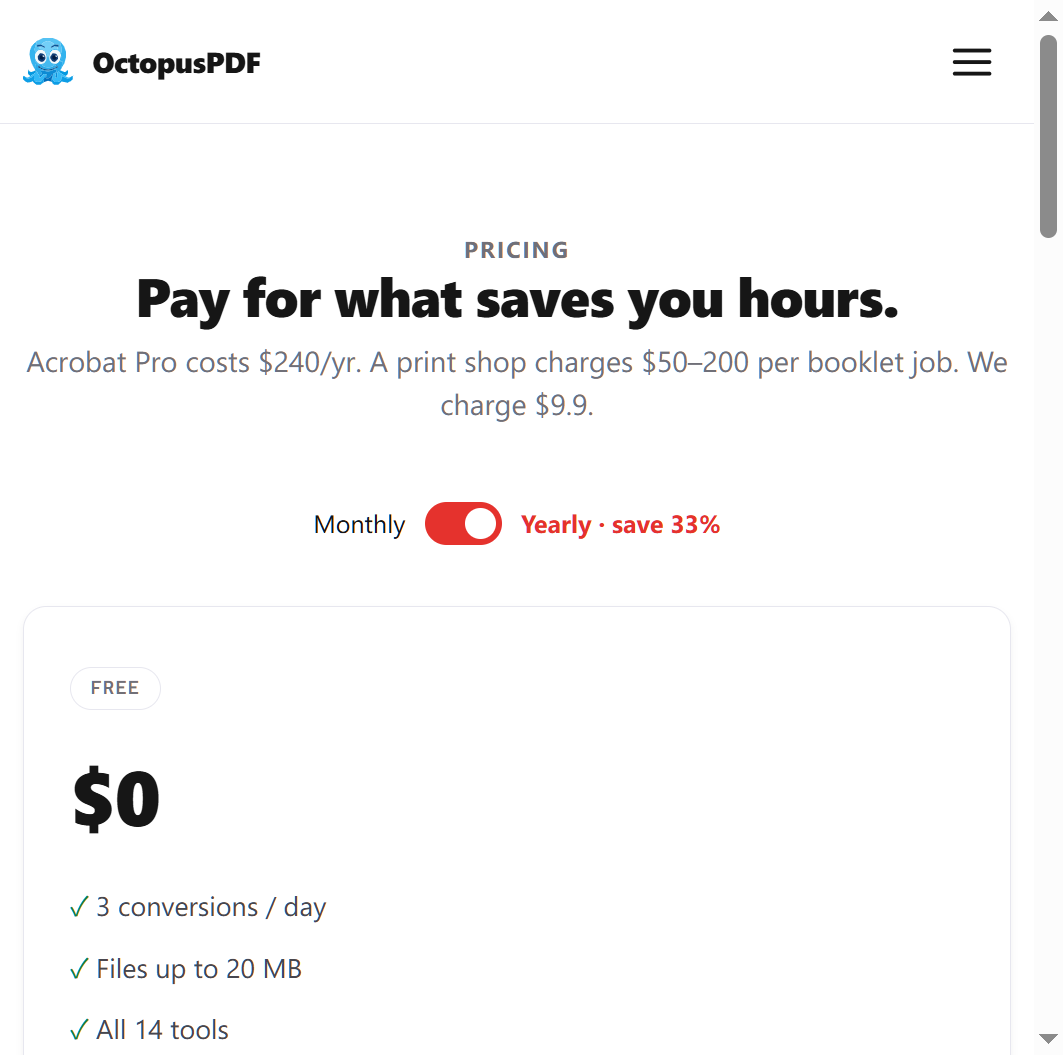
Do the arithmetic against your alternatives. Print shops commonly charge $50–200 per booklet job, which for a weekly bulletin is far outside most church budgets. A dedicated tool's Pro tier is a small fraction of that — OctopusPDF Pro runs $9.9/month or $79/year and adds an unlimited-conversion allowance plus a full print preflight report, which is the closest thing a volunteer gets to a second pair of eyes before pressing Print. Free options — Acrobat's built-in booklet printing, BookletCreator's trial, pdfjam on a laptop — remain perfectly reasonable if your page counts and copier settings are stable week to week.
Conclusion
The bulletin itself is a writing task; the booklet is a printing task, and the printing task has exactly three failure points: page count, imposition, and duplex orientation. Handle those in that order, print one test signature before committing the stack, and write down the settings you used.
If you are the volunteer holding this week's bulletin, do three things now: export the PDF and check that the page count divides by four, impose it with a gutter margin and confirm the imposed file visually before printing, and tape a settings card inside the copier cabinet for whoever runs it next Saturday. Twenty minutes of discipline on Friday replaces an hour of panic on Sunday morning.
Key Facts
- Turning a standard PDF into a print-ready booklet requires correct imposition, duplex printing, and page ordering — all three must be right.
- For saddle-stitch binding, the page count must be a multiple of four; missing pages must be added as blanks so the final sheet is complete, and good booklet tools detect and add them automatically.
- Church bulletins and weekly newsletters are among the most common booklet-printing use cases, alongside zines, teacher workbooks, and small press proof runs.
- Print shops commonly charge $50–200 per booklet job, which is why many congregations impose and preflight files in-house instead.
- A single test signature — printed, folded, and stapled — catches imposition, duplex, and margin errors at the cost of one sheet.